Disclosure: As an Amazon Associate I earn from qualifying purchases. This post may contain affiliate links at no extra cost to you.
- Position your camera at eye level with your monitor 20-40 inches away to prevent musculoskeletal disorders per OSHA guidelines
- An 1080p webcam placed too low or high can cause neck strain and contribute to RSI over time
- Use an ergonomic chair to prevent carpal tunnel syndrome and RSI during long calls — standing desks help too
- Real backgrounds beat virtual ones for authenticity, but both require 3-point lighting to avoid eye strain
- Pair your setup with quality headsets to complete the professional look
You’ve stared at your own face on screen for three hours straight. Your neck aches. Your shoulders burn. And your background? A pile of laundry that somehow became visible when you leaned left.
Remote workers now spend an average of 4.2 hours daily on video calls. That’s 21 hours weekly of static posture and poor camera angles. Most articles tell you to “tidy up” and “get a ring light.” They miss the bigger picture: your video call setup directly impacts your physical health.
NIOSH research shows that poor monitor positioning causes repetitive strain injuries (RSI) that build slowly then strike suddenly. Your background isn’t just about aesthetics — it’s about ergonomics.
| Factor | Real Background | Virtual Background |
|---|---|---|
| Health Impact | Requires proper room layout; encourages movement | Allows standing desk use; fixed camera position can freeze posture |
| Lighting Needs | Natural window light plus fill light | Requires strong, even lighting to prevent digital artifacts |
| Ergonomic Flexibility | Can adjust standing desk height without losing “set” | Camera must stay fixed; limits position changes |
| Professional Perception | Authentic, shows personality | Risk of glitches; acceptable for most corporate calls as of 2026 |
How do I position my camera to prevent musculoskeletal disorders?
The top of your video frame should hit just above your head, with your camera at eye level and your monitor 20-40 inches away.
Most people place laptops on desks. The camera looks up your nose. You tilt your head down to compensate. Three months later, you have chronic neck pain.
This forward head posture causes musculoskeletal disorders that has tracked for decades. Every inch your head tilts forward adds 10 pounds of pressure to your spine. During a 45-minute call, that strain compounds.
A monitor arm fixes this instantly. It lifts your webcam to eye level whether you’re sitting in an ergonomic chair or standing at a standing desk.
Distance matters equally. Sit too close, and you create eye strain. Too far, and you lean forward, compressing your lower back. The “finger test” works: extend your arm fully. Your middle finger should almost touch the screen.
What are the guidelines for video call workstation setup?
The guidelines state that the top of the monitor should be at or slightly below eye level. This prevents the neck extension that causes musculoskeletal disorders during long video conferences.
Ergonomics guidance generally holds that research goes further. Their studies show that static posture during video calls — the “professional freeze” where you don’t move — reduces blood flow to spinal disks.
Ergonomics guidance generally holds that the solution? Use a standing desk for video calls. Alternate every 30 minutes. Your background stays consistent — whether real or virtual — but your spine gets relief. An anti-fatigue mat reduces leg strain when you stand, completing the ergonomic loop.
Can my video call setup cause carpal tunnel syndrome or RSI?
Yes. Poor keyboard and mouse positioning during video calls directly causes carpal tunnel syndrome, which is a specific form of RSI caused by poor ergonomics.
During calls, you type less but mouse more. You mute and unmute. You screen-share and click. Repetitive wrist extension — even slight — creates micro-trauma to the median nerve. Carpal tunnel syndrome develops when that nerve gets squeezed at the wrist.
An ergonomic chair can help reduce the strain associated with carpal tunnel syndrome by allowing armrest adjustment. Your forearms should rest parallel to the floor, wrists neutral.
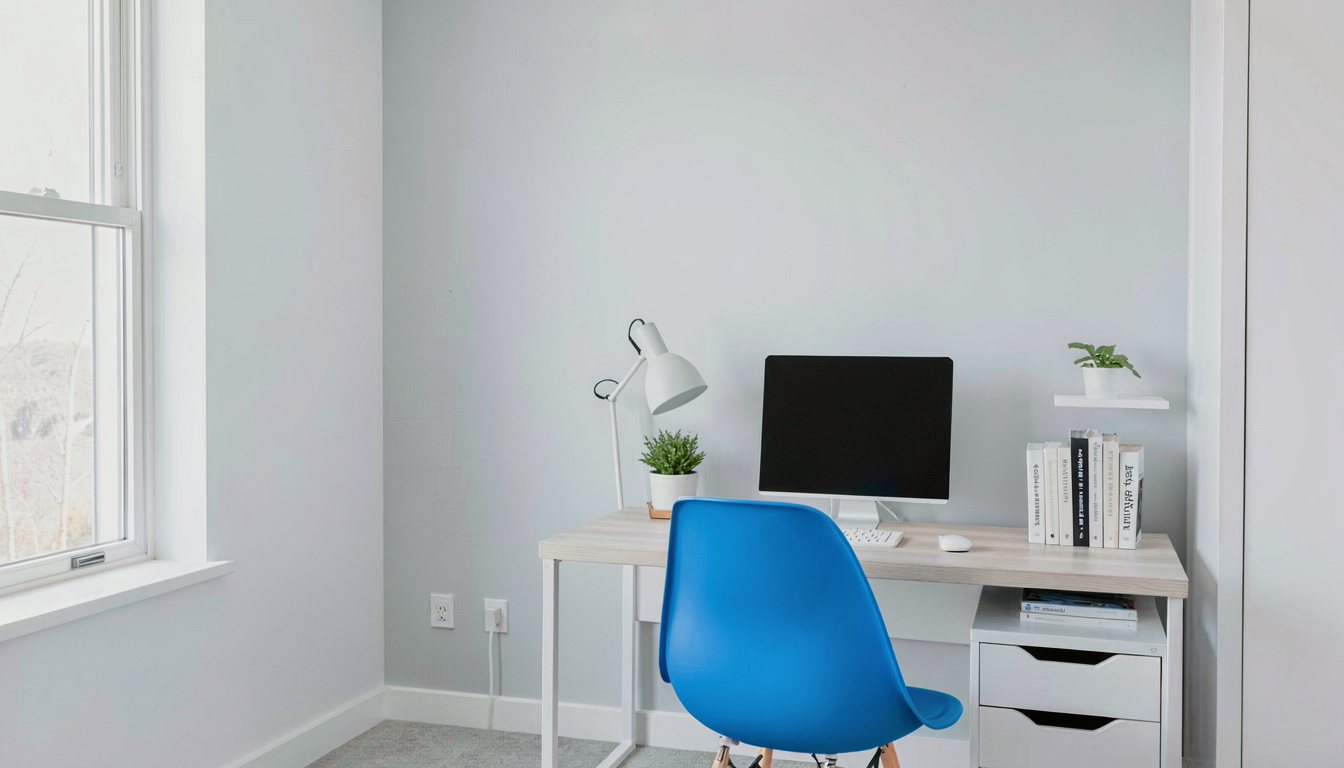
Ergonomics guidance generally holds that rSI covers broader injuries including tendonitis and bursitis. The constant “ready position” — hovering over the mouse while on camera — strains shoulder muscles. An ergonomic chair can help reduce the strain associated with RSI by supporting your upper arms, not just your lower back.
How do I create a professional real background that follows ergonomic principles?
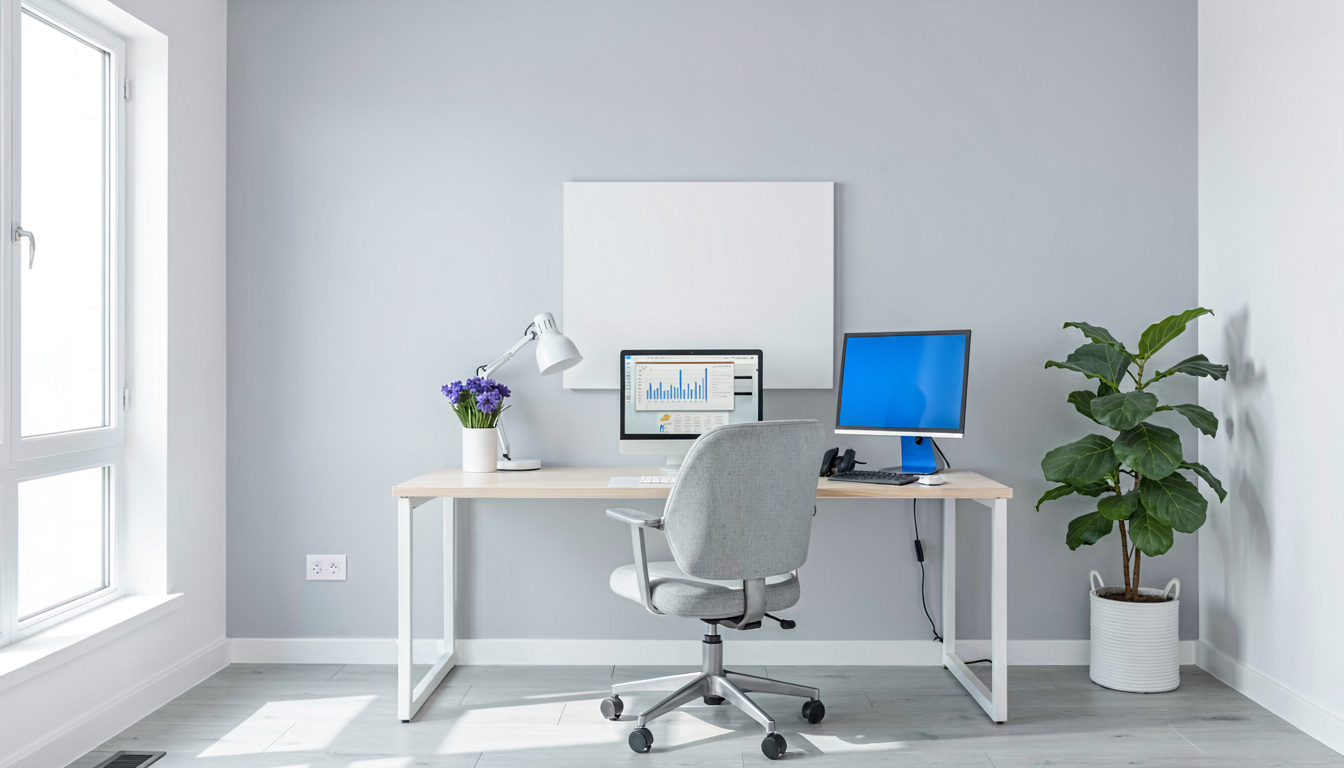
Real backgrounds beat virtual ones for trust. Clients see your actual environment. But that bookshelf behind you shouldn’t force you to twist your neck awkwardly to grab notes.
Ergonomics guidance generally holds that start with the “three-foot rule.” Keep your background three feet behind you. This creates depth and prevents you from hitting your chair against the wall when you recline. A standing desk can help reduce the strain associated with musculoskeletal disorder by letting you adjust height without worrying about headroom or ceiling fixtures showing on camera.
Color psychology matters. Blue and gray backgrounds signal competence. Warm woods feel approachable. Avoid pure white — it forces your camera to overcompensate exposure, making you look washed out.
Plants add life but place them carefully. You don’t want to crane your neck to see past a monstera leaf during a presentation. Position greenery to the side, keeping your head-on view clear. This maintains the neutral spine position that can help reduce the strain associated with RSI.
Lighting completes the look. Place a key light at 45 degrees to your face, slightly above eye line. Add a fill light on the opposite side to kill harsh shadows. If you use natural window light, sit perpendicular to it, not facing it.
What are the best practices for virtual backgrounds in professional meetings?
Use high-resolution images with proper lighting, or you’ll look like a floating head with glitching edges — unprofessional and distracting.
Ergonomics guidance generally holds that virtual backgrounds work best when you have a physical green screen or a solid, contrasting wall behind you. As of 2026, AI background removal has improved but still struggles with fine hair details and similar colors.
Professional virtual backgrounds should be static. Avoid the beach scenes and space stations unless your company culture specifically invites that levity. Instead, choose subtle office environments or branded backdrops with your company logo small and tasteful placed.
The hidden danger? Virtual backgrounds lock your camera position. You can’t stand up and pace during a brainstorming call without breaking the illusion. This static restriction increases your risk of musculoskeletal disorders.
Test your virtual background with a colleague before important calls. Move your hands. Turn your head. If parts of you disappear, the lighting is wrong or the background resolution is too low.
How do I arrange lighting to reduce eye strain and look professional?
Use the three-point lighting method: Key light, fill light, and backlight, keeping overall brightness below recommended screen contrast ratios to prevent fatigue.
Bad lighting forces your eyes to work harder. You squint. Your forehead wrinkles. You lean forward to see your own preview. This cascade creates the exact poor posture that leads to RSI.
Place your key light — your main source — at 11 o’clock if you’re facing the camera. Your fill light goes at 2 o’clock, half as bright. Finally, add a backlight behind you, aimed at your shoulders. This separates you from the background and creates the “broadcast” look.

Window light works too, but never put a window behind you. You’ll become a silhouette. Keeping background illumination within the same range as your screen brightness should prevent constant pupil adjustment.
For dark winter months, a ring light provides even illumination but can create distracting reflections in glasses. Diffuse it with a white pillowcase or move it slightly off-axis.
When should I see a professional about video call-related pain?
Occasional stiffness after long calls is normal. Persistent symptoms are not.
Seek medical help if you experience numbness in your fingers lasting more than 48 hours, sharp wrist pain when clicking your mouse, or chronic neck stiffness that limits your range of motion. These indicate advanced RSI or carpal tunnel syndrome requiring intervention.
A physical therapist can assess whether your specific setup — camera height, chair depth, desk height — violates ergonomic principles. They’ll likely recommend specific stretches for your scalene muscles (front of neck) and wrist flexor stretches to relieve median nerve pressure.
Ergonomics guidance generally holds that Ergonomics guidance generally holds that don’t wait until you drop your coffee mug from hand weakness.
What do ergonomics experts say about video call setups?
Frequently Asked Questions
How far should I sit from the camera for the best background view?
Sit 24-30 inches from your webcam. This distance keeps your face in focus while showing enough background context. Closer than 24 inches creates lens distortion that makes your nose look larger and your background disappear into blur. Further than 36 inches makes you look distant and disengaged.
Can virtual backgrounds cause motion sickness?
Yes. Some users report “cybersickness” when virtual backgrounds shift or lag slightly behind their movements. This visual-vestibular mismatch causes nausea similar to car tire sickness. If you feel queasy after calls, switch to a real background immediately.
Do I need an ergonomic chair if I only take short video calls?
Even 30-minute calls add up. An ergonomic chair can help reduce the strain associated with carpal tunnel syndrome and RSI by supporting neutral joint positions. If you take more than three calls weekly, invest in proper support. Your future self will avoid the physical therapy bills.
Should I use a standing desk for every video call?
Alternate. Standing desk use can help reduce the strain associated with musculoskeletal disorder by changing your spinal load pattern. However, standing for 8 hours straight causes its own problems. Use an anti-fatigue mat and shift weight between feet every few minutes.
How do I hide my messy room without a virtual background?
Use the “corner trick.” Position yourself in a corner where two walls meet. Both walls act as backdrops, minimizing visible clutter. Add a simple floor lamp with a shade to one side — instant sophistication that draws eyes away from the background.
Related Reading
Complete your professional video call setup with these guides:
- Best Headsets for Video Calls and Remote Work — Crystal clear audio completes your professional image
- Best Earbuds for Video Calls and Meetings — Discreet options for hot weather or minimal looks
- Best 1080p Webcams for Video Calls — Because your laptop camera makes you look blurry and unprofessional
Last updated: April 29, 2026
2 thoughts on “Best Practices for Video Call Backgrounds in a Home Office”