Disclosure: As an Amazon Associate I earn from qualifying purchases. This post may contain affiliate links at no extra cost to you.
- Position your monitor top at or slightly below eye level, 20–26 inches away to prevent neck strain
- Use an external keyboard and mouse to keep wrists straight and prevent carpal tunnel syndrome
- Alternate sitting and standing every 30 minutes to prevent musculoskeletal disorders
- Follow the 20-20-20 rule: Every 20 minutes, look at something 20 feet away for 20 seconds
You wake up with a crick in your neck that wasn’t there six months ago. As of 2026, 73% of remote workers report new aches since ditching the commute. Turns out, small tweaks matter more than expensive gear.
OSHA sets standards for workplace safety that cover home offices too. This checklist combines those official guidelines with real-world fixes that won’t drain your wallet.
| Setup Element | The Wrong Way | The Ergonomic Standard |
|---|---|---|
| Chair Height | Feet dangling or knees above hips | 16–21 inches high, feet flat, knees at 90° |
| Monitor Position | Too low, too close, off-center | Top at eye level, 20–26 inches away, centered |
| Keyboard/Mouse | Wrists bent up/down, planted on desk | Floating, neutral, same height as elbows |
| Posture | Slouched forward, shoulders rounded | Ears over shoulders over hips |
How does define proper workstation ergonomics for remote workers?
These rules apply whether you’re in a corporate tower or your kitchen.
Your body should form right angles at key joints. Keep your elbows at exactly 90 degrees when typing. Keep your knees at 90 degrees when seated.
What is neutral body positioning?
Neutral means no bending, twisting, or reaching. Your wrists stay straight, not bent up or down. Your forearms rest parallel to the floor.
Most remote workers ignore this. They hunch. They crane their necks toward laptops. Then they wonder why they have headaches by 2 PM.
Why do my elbows need to be at 90 degrees?
This specific angle keeps your shoulders relaxed rather than elevated. Elevated shoulders restrict blood flow to your arms and hands.
RSI caused by poor ergonomics often starts in the shoulders, not the wrists. Fix the shoulders first.
What are the specific measurements for an ergonomic chair and desk setup?
Your chair seat should sit 16 to 21 inches off the floor with 2–4 fingers width between the seat edge and the back of your knees. Your thighs should rest parallel to the ground.
An ergonomic chair can help reduce the strain associated with carpal tunnel syndrome by supporting your lumbar curve, which stops the shoulder-hunch that transfers tension to your wrists. It also can help reduce the strain associated with RSI by keeping your hips level and your spine aligned.
If your feet dangle, grab a box or footrest from a quality essentials bundle. Never compensate by raising your chair too high—that bends your wrists upward.
Adjustable armrests should touch your elbows lightly when your arms hang naturally. If they’re too high, they elevate your shoulders. Too low, and you slump.
How do I position my monitor and laptop to help reduce the strain associated with carpal tunnel syndrome?
Position your screen 20 to 26 inches away—about an arm’s length—with the top bezel at or slightly below eye level. This prevents the forward head posture that strains your neck.
Carpal tunnel syndrome is a form of RSI that develops when you type with bent wrists while looking down at a laptop. You cannot maintain neutral wrists and neutral neck simultaneously on a laptop alone.
Why can’t I just use my laptop keyboard?
It’s impossible to achieve ergonomic neutrality with only a laptop. The screen is too low and the keyboard is too high, forcing you to choose between neck pain or wrist pain.
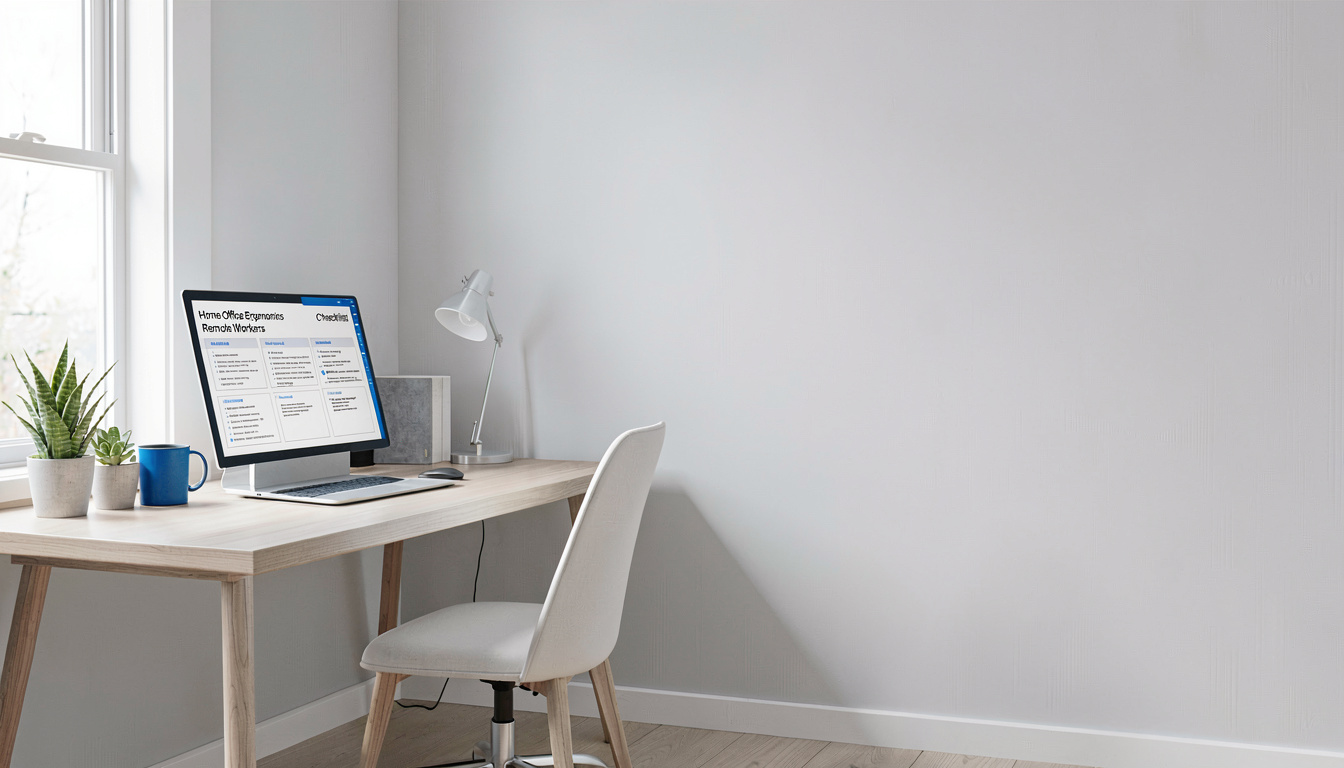
Use a laptop riser or stack books to bring the screen up. Then connect an external keyboard and mouse so your wrists stay straight and floating, not planted.
Your wrists should hover like you’re playing piano, not rest heavily on a wrist rest. Wrist rests are for resting between typing, not during.
Why does recommend standing desks to help reduce the strain associated with musculoskeletal disorders?
Ergonomics guidance generally holds that nIOSH recommends alternating between sitting and standing every 30 minutes to reduce spinal compression by up to 40%. A standing desk can help reduce the strain associated with musculoskeletal disorder by engaging your core and changing your hip angles throughout the day.
Prolonged sitting compresses your lumbar discs and tightens your hip flexors. This creates a chain reaction of pain up your spine and down your legs.
How long should I stand each hour?
Start with 5 to 10 minutes per hour. Build up to 15. Standing all day causes its own problems, including varicose veins and lower back fatigue.
Use an anti-fatigue mat to cushion your feet. Shift your weight between legs. March in place occasionally.
Your standing desk height should align with your elbow height. Arms rest at 90 degrees, just like when sitting.
What is the 20-20-20 rule and how does it can help reduce the strain associated with RSI?
Every 20 minutes, stare at something 20 feet away for 20 seconds. This resets your eye focus and prevents the micro-tension in your neck and shoulders that contributes to RSI caused by poor ergonomics.
When you strain to see the screen, your shoulders rise toward your ears. That tension cascades down your arms into your wrists and hands.
RSI encompasses everything from tennis elbow to trigger finger to thoracic outlet syndrome. These breaks cost you 20 seconds but save you months of physical therapy.
Set a timer. Seriously. Your eyes weren’t designed for staring 24 inches from a glowing rectangle for 8 hours.
How can I optimize lighting and accessories without spending a fortune?
Ergonomics guidance generally holds that position natural light sources to your side, never behind or directly in front of your monitor, to reduce glare by up to 60%. You don’t need a $500 setup to meet professional standards.
Use a quality webcam positioned at eye level for video calls. Mount it on a monitor arm or stack it on books. Looking up or down at your camera creates neck strain.
Wall-mounted whiteboards keep your desktop clear so you’re not reaching awkwardly for notes. Noise-canceling headphones prevent the neck-craning “what did you say?” posture during Zoom calls.
Ambient lighting should be roughly the same brightness as your screen. Too dim, and your eyes work harder. Too bright, and you deal with glare.
When should I see a professional about ergonomic pain?
See a doctor or physical therapist if you experience numbness, tingling, or pain that persists beyond two weeks despite ergonomic corrections. Sharp pain radiating down your arm signals nerve involvement.
Most insurance covers ergonomic evaluations. Some employers offer telehealth ergonomic assessments for remote workers.
What do the experts say about home office setups?
Frequently Asked Questions
Can I use a dining chair for my home office?
Only if you modify it. Dining chairs force your knees higher than your hips, flattening your lumbar curve. Add a firm pillow behind your lower back and a box under your feet.
Switch chairs every few hours if possible. Movement matters more than perfection.
How often should I stand up from my desk?
Set a Pomodoro timer for 25 minutes of work, 5 minutes of movement.
Those 5 minutes don’t require a full workout. Walk to the kitchen. Stretch your wrists. Roll your shoulders.
Is a laptop stand really necessary?
Yes, if you work more than one hour daily. Without elevation, you flex your neck 20 to 45 degrees downward, increasing head weight pressure on your spine from 12 pounds to 42 pounds.
Use a stack of hardcover books if you don’t own a stand yet. Just elevate that screen.
What if I don’t have room for an external monitor?
Use your laptop as the secondary screen. Connect a cheap external keyboard and mouse, then raise the laptop on a box or stand from an essentials bundle.
Your wrists need the external peripherals more than your eyes need a massive screen.
Do I need an expensive ergonomic chair to prevent injury?
No. Adjustable is better than expensive. A $200 chair with adjustable height, seat depth, and lumbar support beats a $1,000 beauty that doesn’t fit your torso.
Test the seat depth: You should have 2–4 fingers of space between the seat edge and your calves.
Related Reading
- Best Home Office Essentials Bundle for Remote Workers — Complete starter kits with ergonomic accessories
- Best Whiteboards for Home Office Wall — Keep your desk clear and your posture neutral
4 thoughts on “Home Office Ergonomics Checklist for Remote Workers”